

Ergonomic Office Accessories That Earn Desk Space
A laptop on the kitchen table can feel workable for an hour. By midafternoon, it can leave your shoulders tight, your wrists sore, and your attention drifting. Ergonomic office accessories are not about creating a picture-perfect desk. They are practical upgrades that help your body work in a more natural position, whether you are answering emails between school pickup and dinner or spending eight hours at a dedicated home office.
The best setup is rarely the one with the most gear. It is the one that solves the discomfort you actually notice, fits your space, and is easy enough to use every day.
Start With the Problem You Want to Fix
Before adding anything to your cart, pay attention to where work feels difficult. Neck tension usually points to a screen that is too low. A tingling wrist or forearm strain may mean your mouse and keyboard are placed poorly. Lower-back fatigue can come from a chair that does not support your posture, but it can also happen when you sit still for too long.
This matters because accessories work together. A monitor stand can raise your screen, for example, but laptop users will usually need an external keyboard and mouse too. Otherwise, lifting the laptop may improve neck position while making typing awkward. Shop smart by treating your desk as a system, not a collection of trendy gadgets.
Ergonomic Office Accessories Worth Considering
A laptop stand for screen height
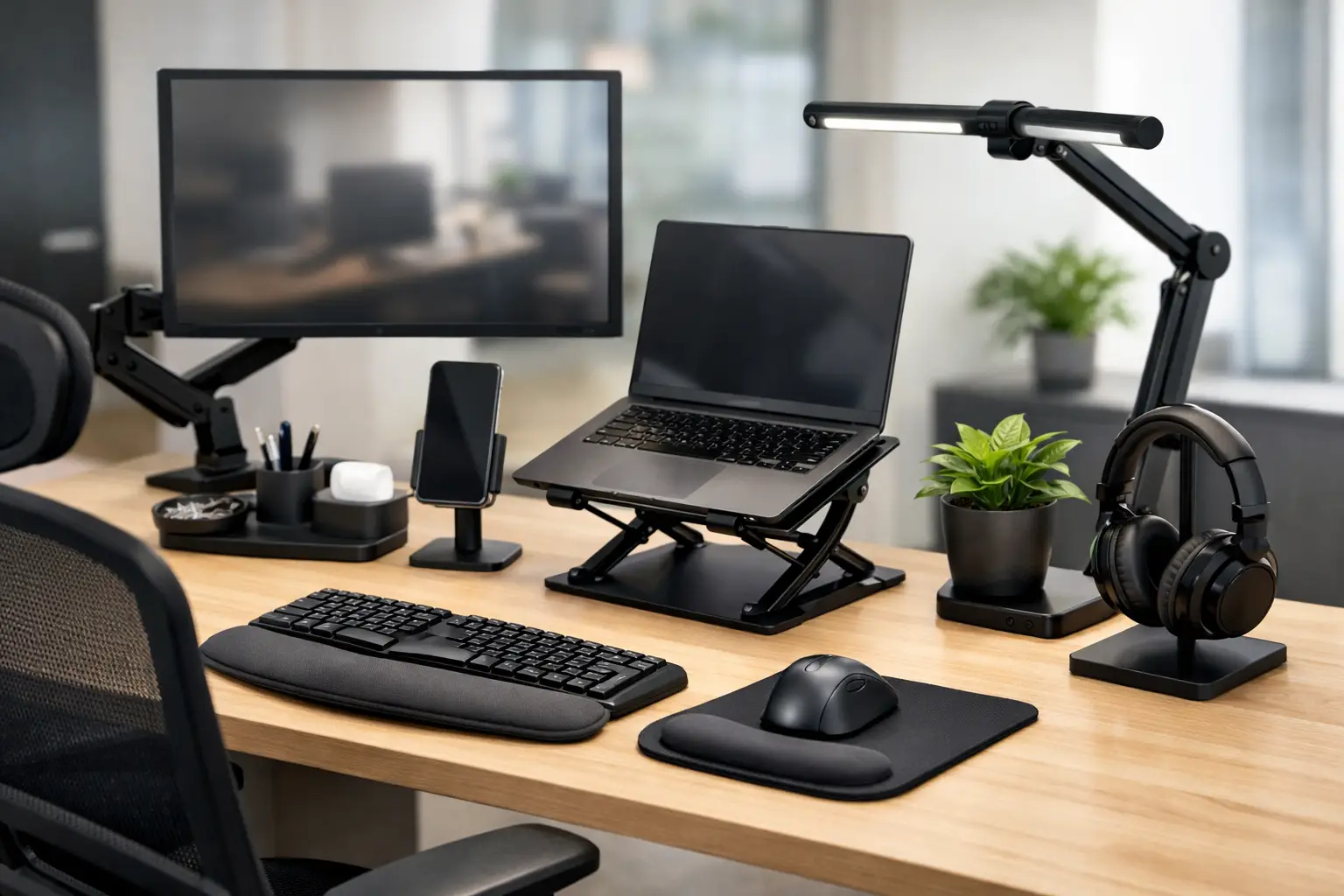
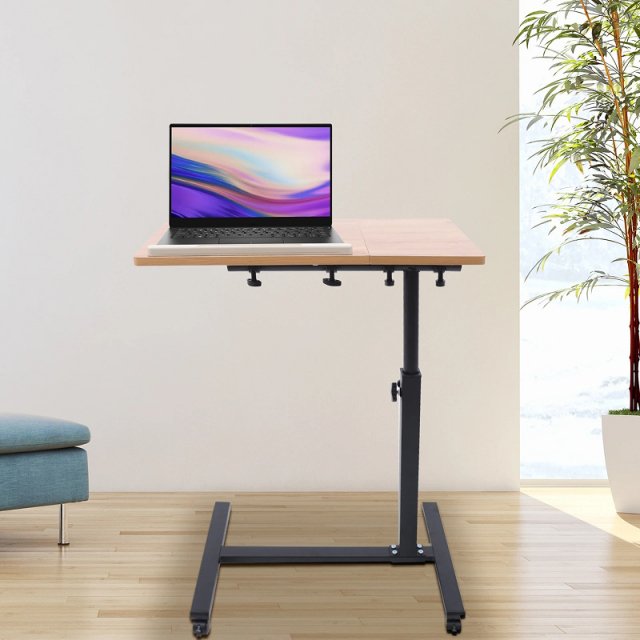
For anyone who works primarily from a laptop, a stand is often the simplest high-impact change. The goal is to bring the top portion of the screen closer to eye level so you are not constantly folding your head forward. Adjustable stands offer more flexibility if your chair, table, or work location changes often.
A portable riser is a good choice for small spaces and hybrid work. A sturdier desktop stand may feel better for a permanent setup. The trade-off is that once a laptop is raised, its built-in keyboard is no longer comfortable for extended typing. Plan to pair it with separate input devices.
An external keyboard and mouse
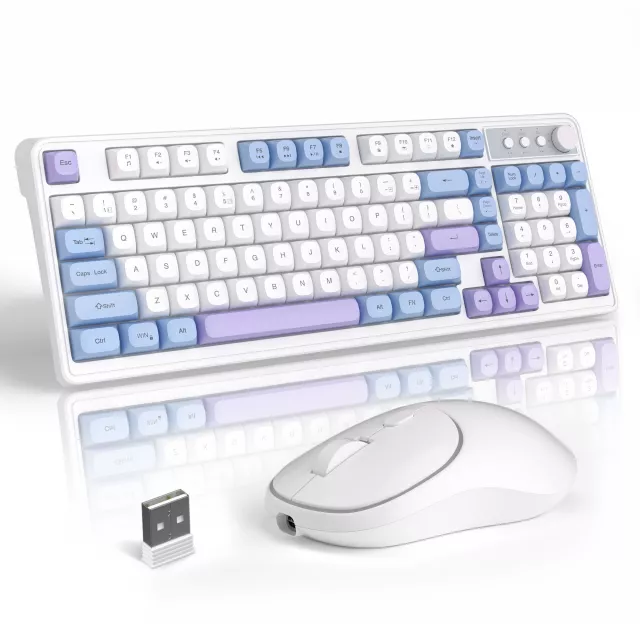
A compact external keyboard lets you position your arms more comfortably while keeping your screen at a better height. Look for a layout that feels familiar, especially if you switch between work and personal devices. A full-size model with a number pad can be useful for spreadsheets, while a smaller keyboard creates more room for mousing.
Your mouse should fit your hand rather than forcing your fingers to grip tightly. Standard wireless mice are familiar and easy to use, while vertical designs place the hand in a more handshake-like position. Vertical mice can feel great for some people with wrist discomfort, but they are not automatically better for everyone. They take an adjustment period, and users who need fast, precise cursor movement may prefer a conventional shape.
A supportive seat cushion or lumbar pillow
Not every home office chair needs to be replaced immediately. A well-chosen lumbar pillow or seat cushion can make a basic chair more comfortable by supporting the curve of your lower back or reducing pressure through the hips.
Pay attention to thickness. An overly bulky cushion can push you too far forward, leaving your feet dangling or putting you too close to the desk. If that happens, a footrest can help restore a stable position. Your feet should have a firm place to rest, with knees comfortably bent instead of tucked underneath the chair.
A footrest for better lower-body support
Footrests are easy to overlook, especially because they do not look like a major desk upgrade. Yet they can be especially helpful for shorter users, anyone using a chair that sits a little high, or people working at fixed-height tables. A stable footrest helps prevent the habit of perching at the edge of the seat or wrapping your feet around chair legs.
Choose an option with a non-slip base and, if possible, an adjustable angle. Some people prefer a flat platform; others like a gently rocking surface that encourages small movements. Neither is universally right. Comfort and stability matter more than extra features.
A monitor stand or monitor arm
Desktop monitor users can improve their viewing angle with a simple stand or an adjustable monitor arm. The ideal screen position varies with your height and vision needs, but generally, you want to look forward with only a slight downward gaze rather than bending your neck.
A stand is usually the easy, budget-friendly option. A monitor arm offers more freedom to adjust height, distance, and angle, and can free up valuable desk space. Check the monitor’s weight and mounting compatibility before choosing an arm. A great-looking accessory is not useful if it will not fit your display or desk edge.
A desk mat and wrist support, used wisely
A large desk mat can create a smoother surface for a mouse, protect the tabletop, and visually define a work zone in a shared room. It will not correct posture on its own, but it can make your workspace feel more organized and comfortable.
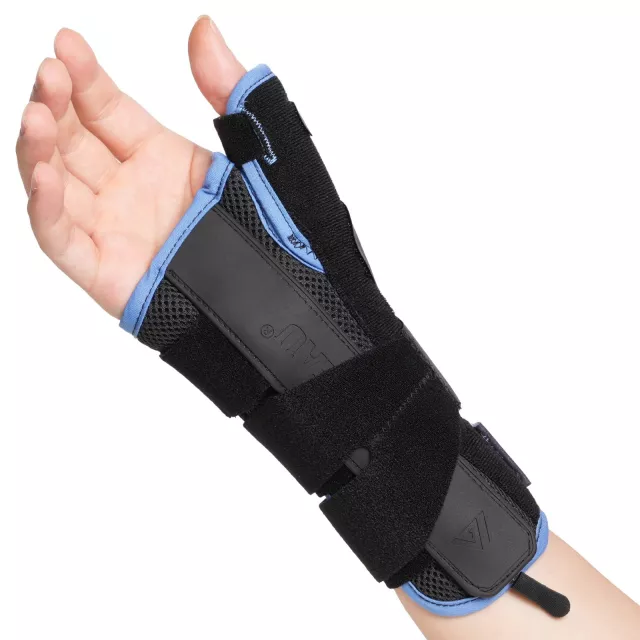
Wrist rests deserve a little more caution. They should support your palms during breaks, not hold your wrists up while you type. If a rest causes your wrists to bend upward, it may create more strain instead of less. Your keyboard should be positioned so your hands can stay as neutral and relaxed as possible.
Small Changes That Make Accessories Work Better
Even excellent ergonomic office accessories cannot offset a workstation that encourages you to stay frozen for hours. Your body benefits from variety. Shift positions, stand up during a call, refill your water, or take a short lap around the room between tasks. These small resets are realistic for busy schedules and often do more than buying another desk gadget.
Lighting matters too. If you are squinting toward a bright window or working under harsh overhead light, you may lean closer to the screen without realizing it. A task lamp with adjustable brightness can reduce glare and make late-afternoon work easier on the eyes. Position it to the side of your work surface when possible, rather than directly behind your monitor.
Cable management also earns its place in a comfortable setup. Loose cords can limit where you position your keyboard, mouse, or monitor. A few simple clips or an under-desk organizer can clear the surface so your accessories sit where your body needs them, not where the cables allow.
Build Your Setup in the Right Order
If you are starting from scratch, begin with screen height and input position. A laptop stand, external keyboard, and mouse often create the biggest improvement for remote workers. Next, consider chair support and a footrest if your lower back, hips, or legs are uncomfortable. Add a monitor arm, lighting, desk mat, or cable organization as your space and routine call for them.
There is no need to overhaul everything at once. A few thoughtful, everyday upgrades can be more useful than an expensive setup filled with items that never get adjusted. At PO-Store, practical home and tech finds are made for real routines, including the desks that double as offices, homework stations, and family command centers.
Make Comfort Easy to Keep
The most useful desk accessory is the one you will keep using correctly. Choose adjustable pieces when multiple people share a workspace, portable options when you work from different rooms, and simple designs when you want less clutter. If discomfort continues, becomes sharp, or includes numbness, consider talking with a qualified healthcare professional rather than trying to solve it with another purchase.
Give your setup a week, then make one adjustment at a time. Raise the screen, bring the mouse closer, or add support under your feet. A more comfortable workday often begins with one small change that makes sitting, focusing, and getting things done feel noticeably easier.












Leave a comment